

What’s saved
Pick up where you left off
1
Sign in
Use any job link or email from the employer, or the sign-in page. See Sign in to your account.
2
Open the job
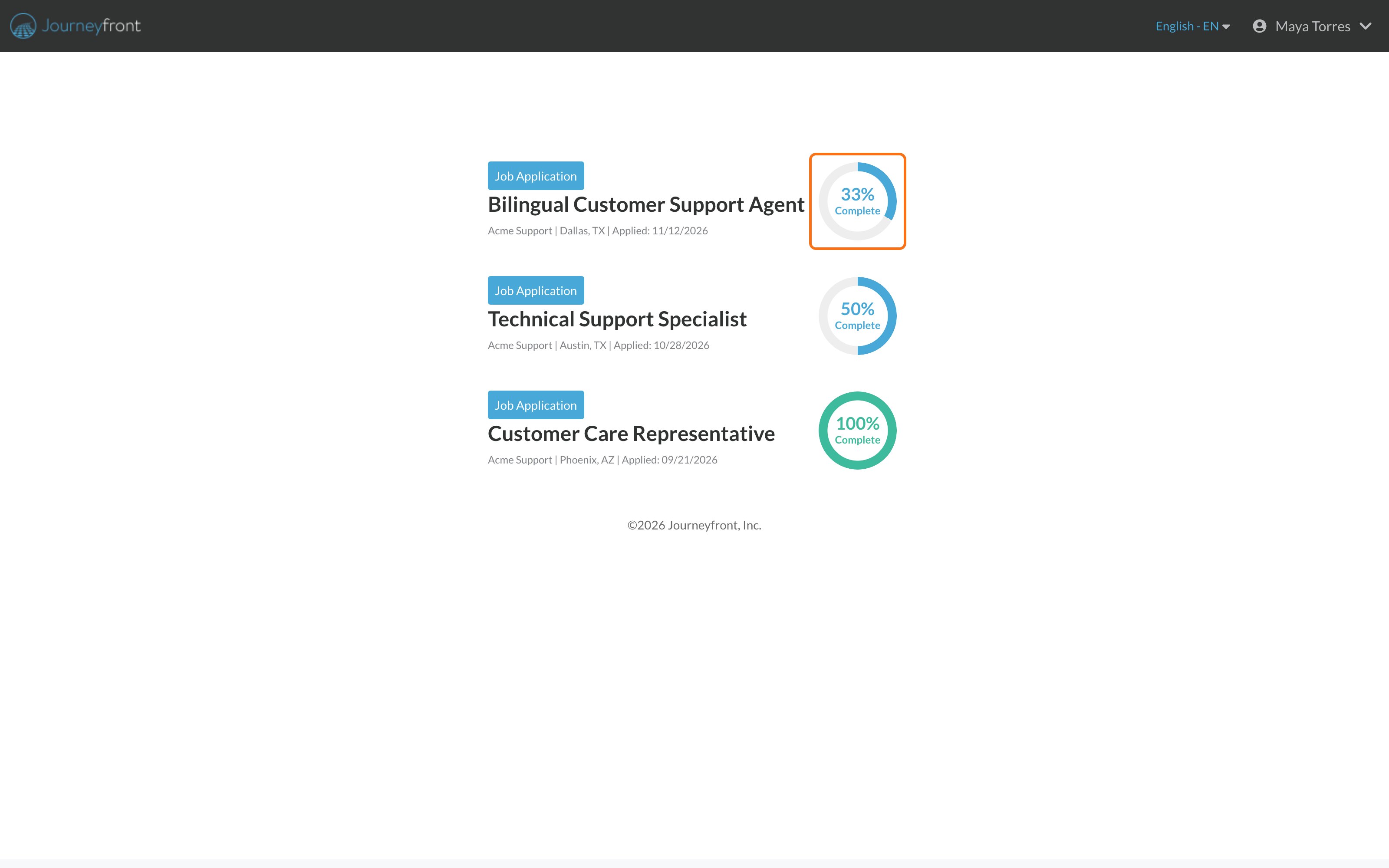
On your progress page, click the job’s card.
3
Continue
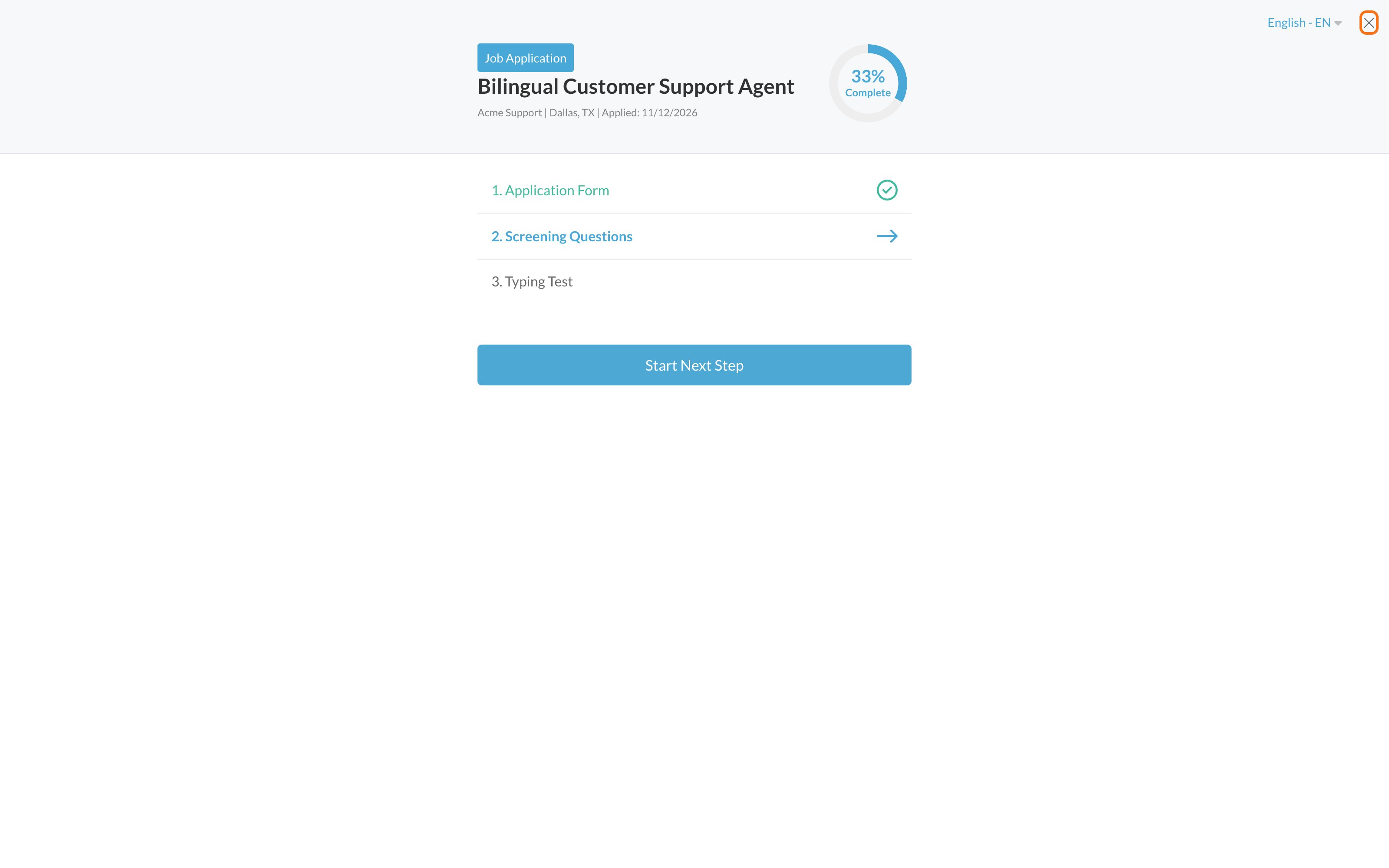
Click Start Next Step. You’ll go to the next thing that isn’t done.
Leaving in the middle of questions
If you close a set of questions, you’ll see Leave Assessment?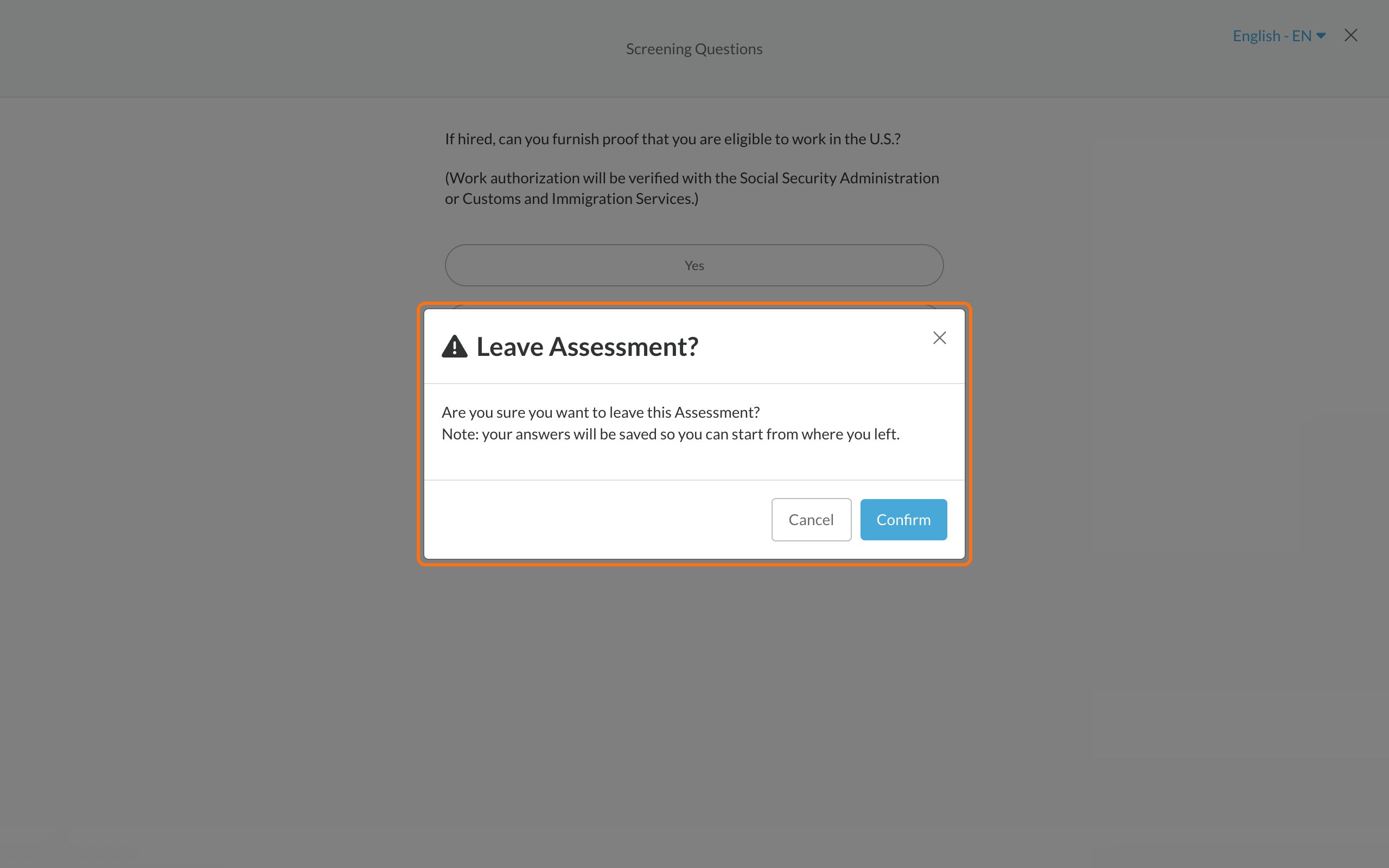
- If it says your answers will be saved so you can start from where you left, you can come back and continue.
- If it says All answers will be lost, you’ll start that step over next time. Click Cancel to stay.
Tips
- Use the X on the page to leave, not your browser’s back button. If the X takes you to the employer’s website, sign in again to continue.
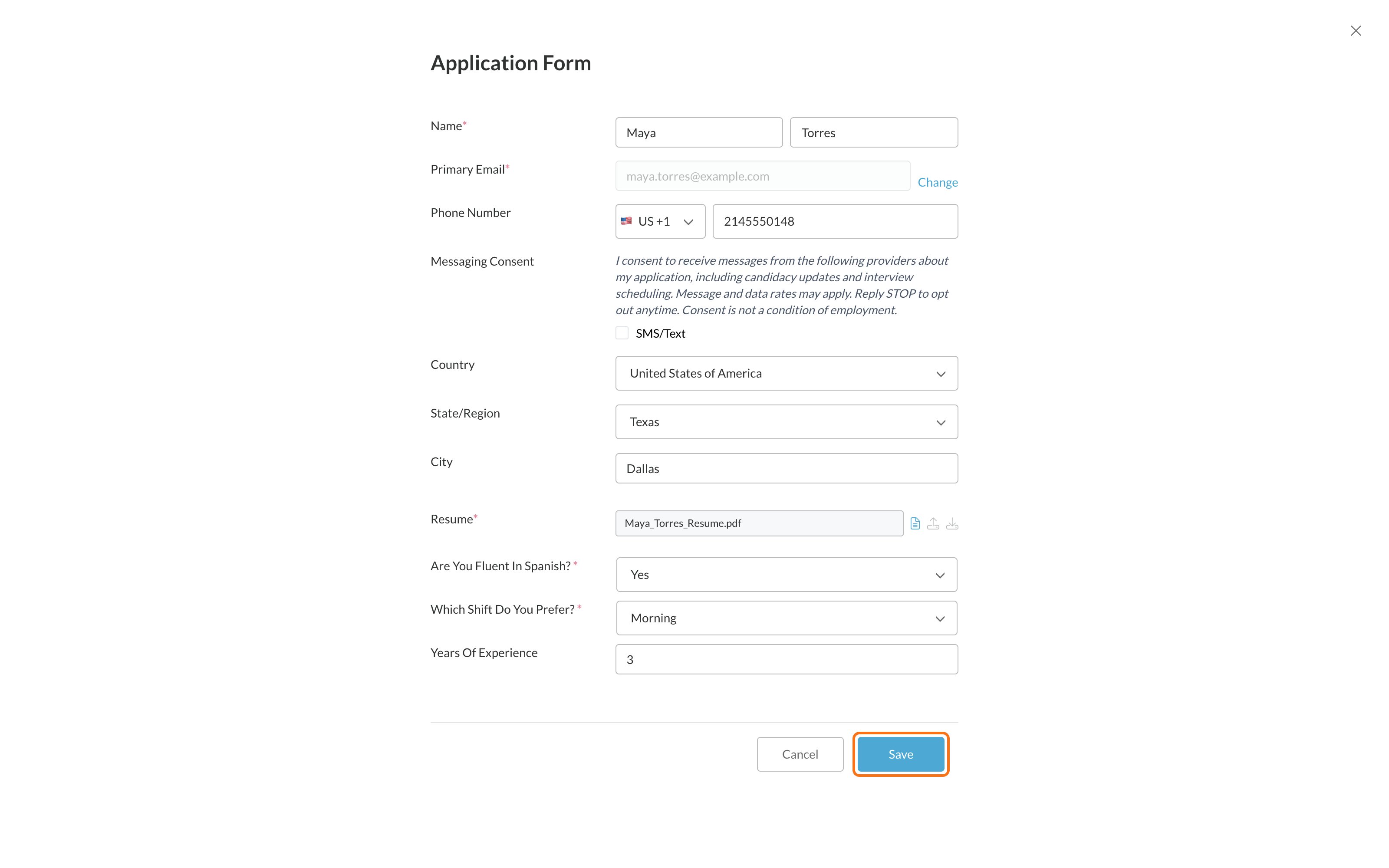
- On the application form, click Save before you leave the page.
Related
Your test froze or your connection dropped
What happens to your work.
Track your application progress
What’s done and what’s next.