

Checklist
1
Use a computer if you can
The typing test needs a full keyboard, so use a computer or connect a keyboard to your phone or tablet. The system requirements test needs a computer. Others work on a phone. If the employer’s instructions say to use a computer, use one. See Phone or computer.
2
Use an up-to-date browser
Chrome, Edge or Firefox work well on a computer. On an iPhone or iPad, use Safari for video and audio questions. See Supported browsers.
3
Use a normal browser window
Private or incognito windows can cause problems. Open a regular window.
4
Get a steady internet connection
Stay in one place with a strong connection. Avoid switching between Wi-Fi and mobile data while you work.
5
Set aside enough time
Some assessments have a timer that keeps running even if you leave the page. Start when you have time to finish.
6
Find a quiet place
If you’ll record video or audio answers, pick a quiet, well-lit spot and close other apps that use your camera or microphone.
How assessments work
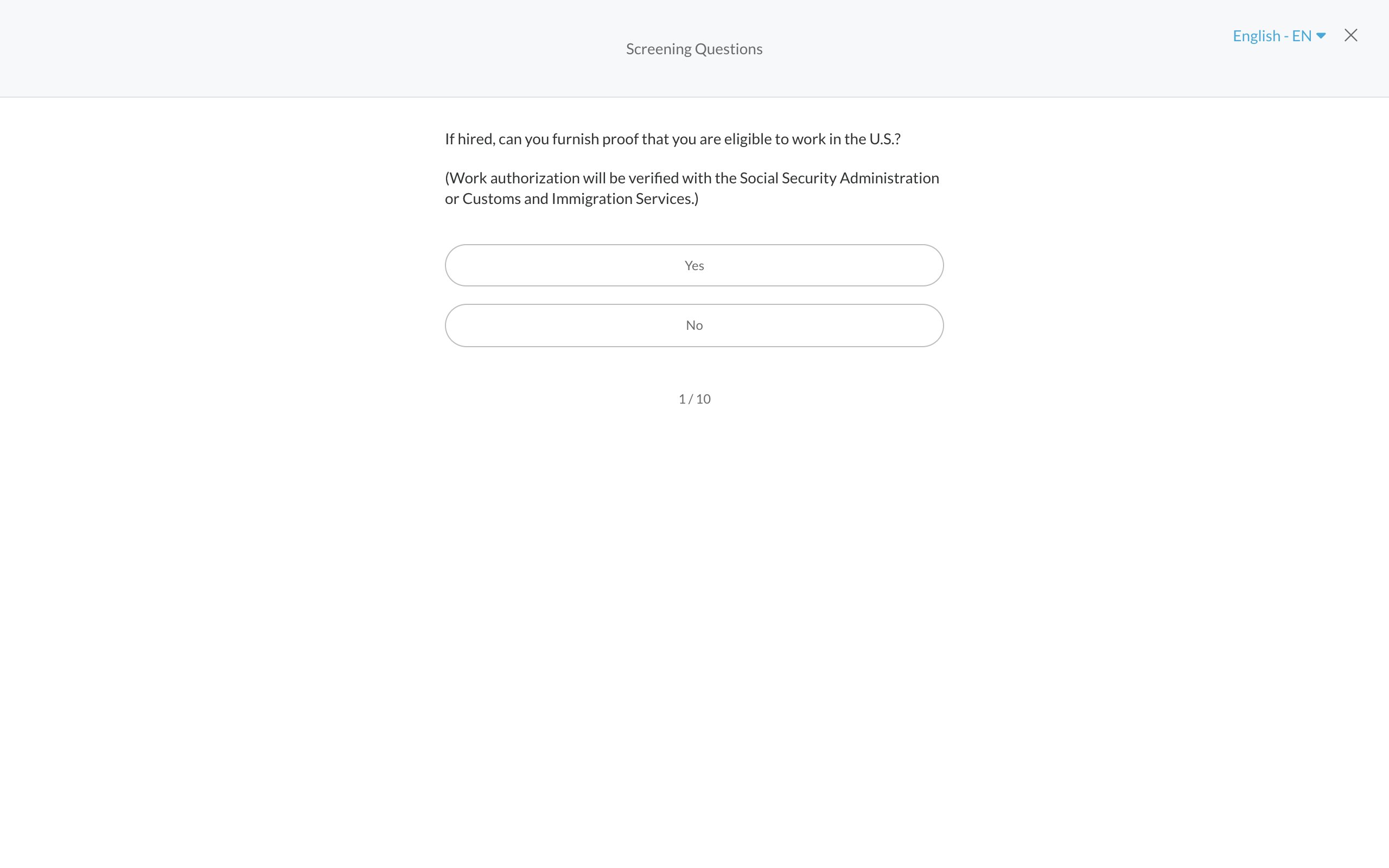
- Read the instructions first. Each assessment starts with instructions. Read them before you click to begin.
- Usually you do them in order. On your progress page, click Start Next Step to open the next one. Finished ones show a green check.
- You may see an Authenticity Pledge first. Before some assessments, a screen called Authenticity Pledge asks you to give honest answers. Read it, then click one of the buttons to continue.
- Finished means finished. Once you complete an assessment, you can’t open it again. Make sure you’re ready before you submit.
- Some save as you go and some don’t. See Your test froze or your connection dropped.
Related
Typing test
How it works and common problems.
Allow your microphone and camera
For video and audio questions.