

Sign your offer
1
Open the email
By default, it comes from the employer’s name via Journeyfront, with a subject like Your Offer Letter is Ready to Sign.
2
Click Review and Sign Your Offer Letter
A secure signing page opens in your browser. It shows your offer letter and any other documents the employer included.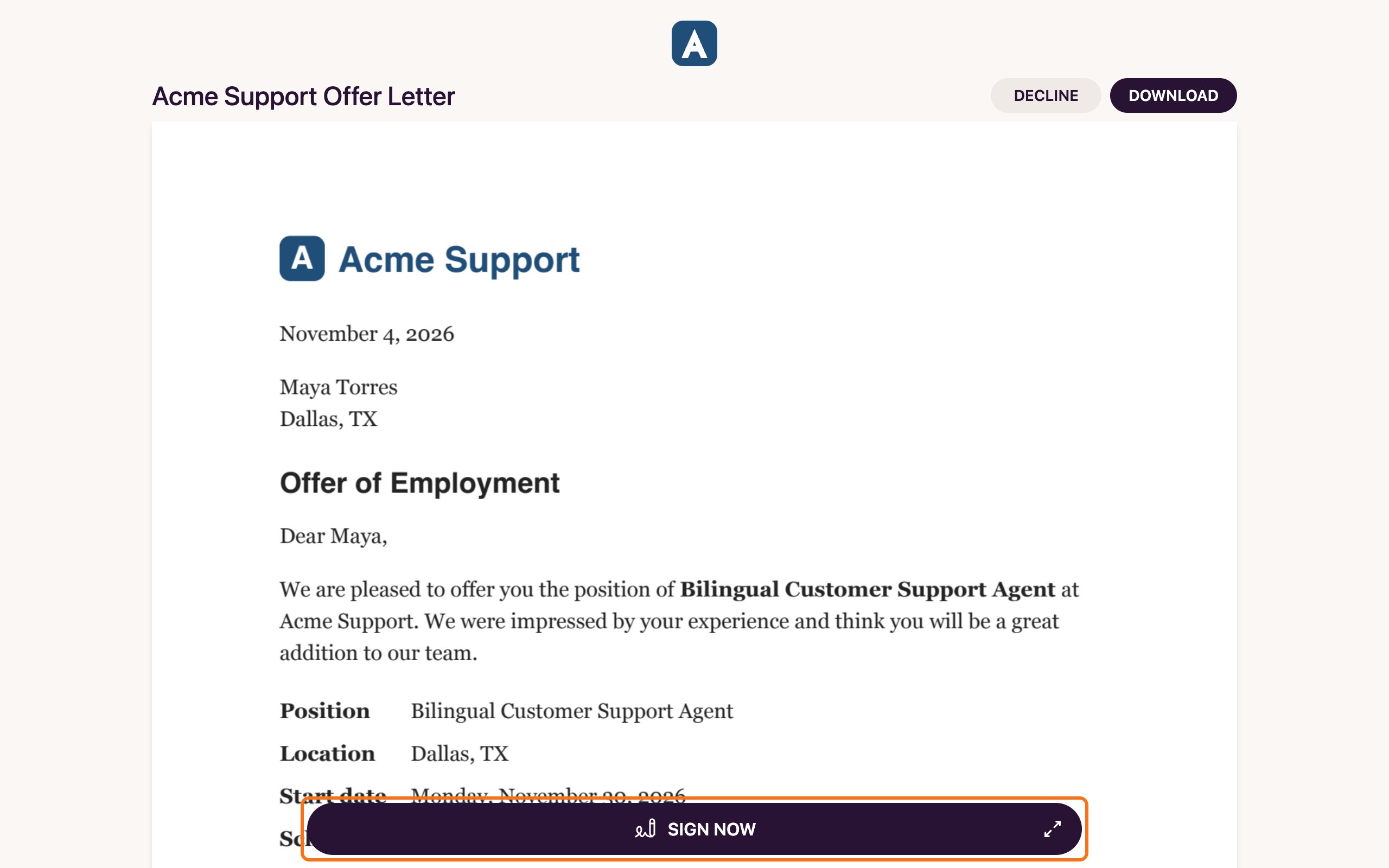
3
Read everything
Scroll through each document. When you’re ready, click Sign Now. It walks you through each field you need to fill in.
4
Sign
Draw your signature, type it, or upload a picture of it. Click Next, fill in any other fields, such as the date, then click Complete.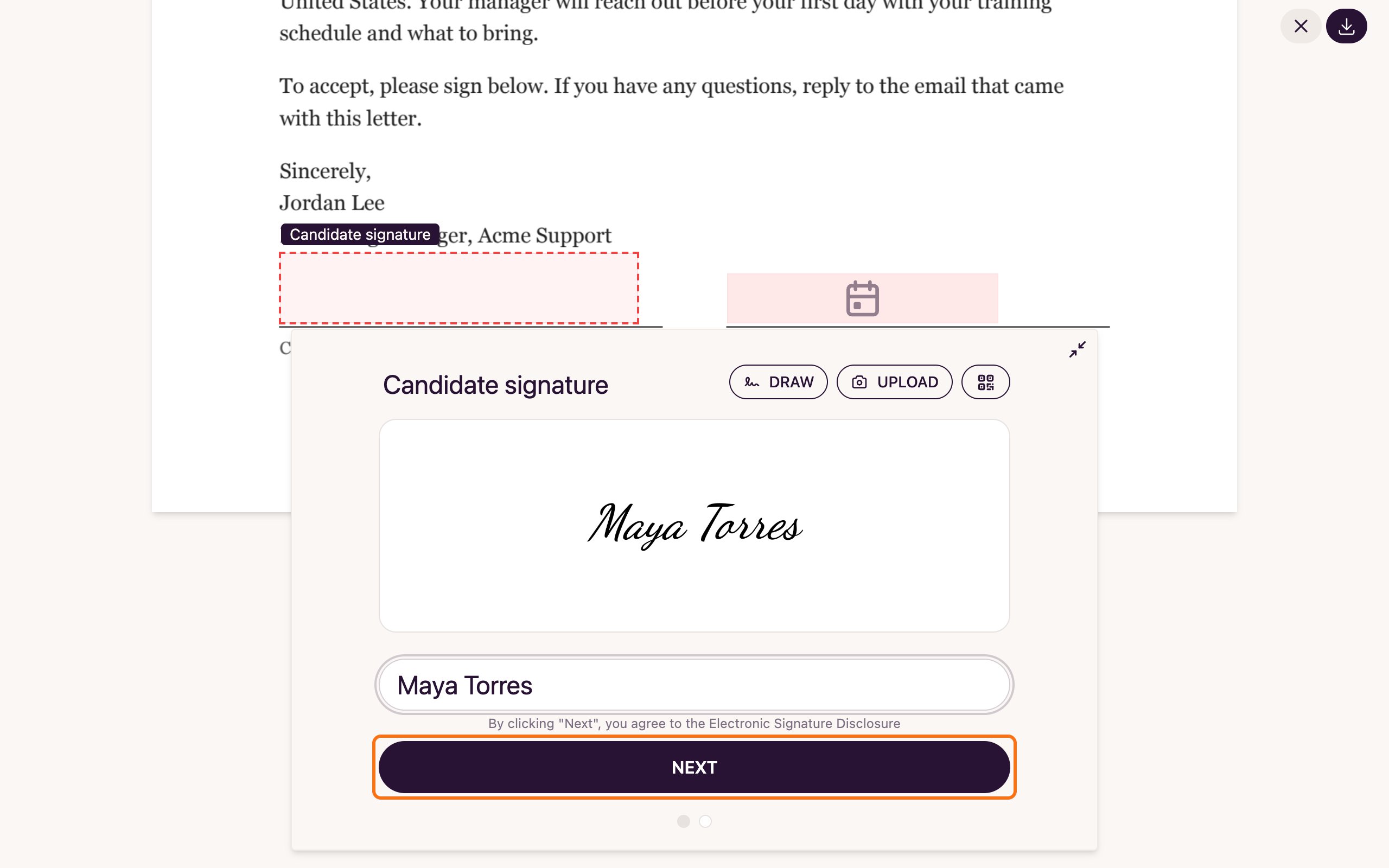
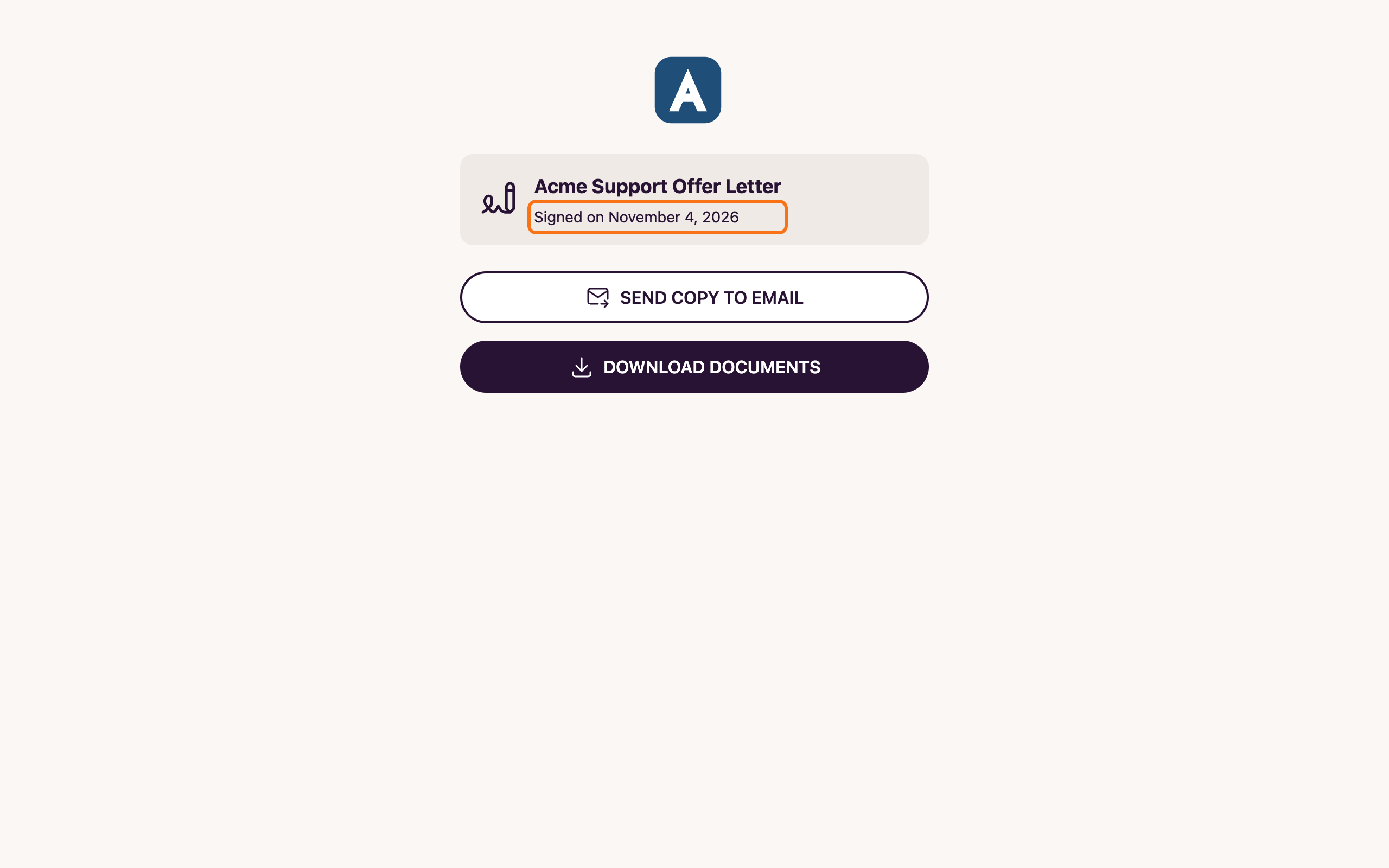
After you sign
- You get a copy by email once everyone who needs to sign has signed. The subject ends with Signed, and the signed PDF is attached.
- If someone at the employer also signs, your copy arrives after they sign. That can take a little while.
Common questions
I got a reminder from a different email address
I got a reminder from a different email address
Reminders to sign can come from the secure signing service’s email address, not the same address as the first email. They still open the same offer.
I don't want to accept the offer
I don't want to accept the offer
On the signing page, click Decline at the top. You can add a reason for the employer, then click Decline again. If you have questions first, contact the employer before you decide.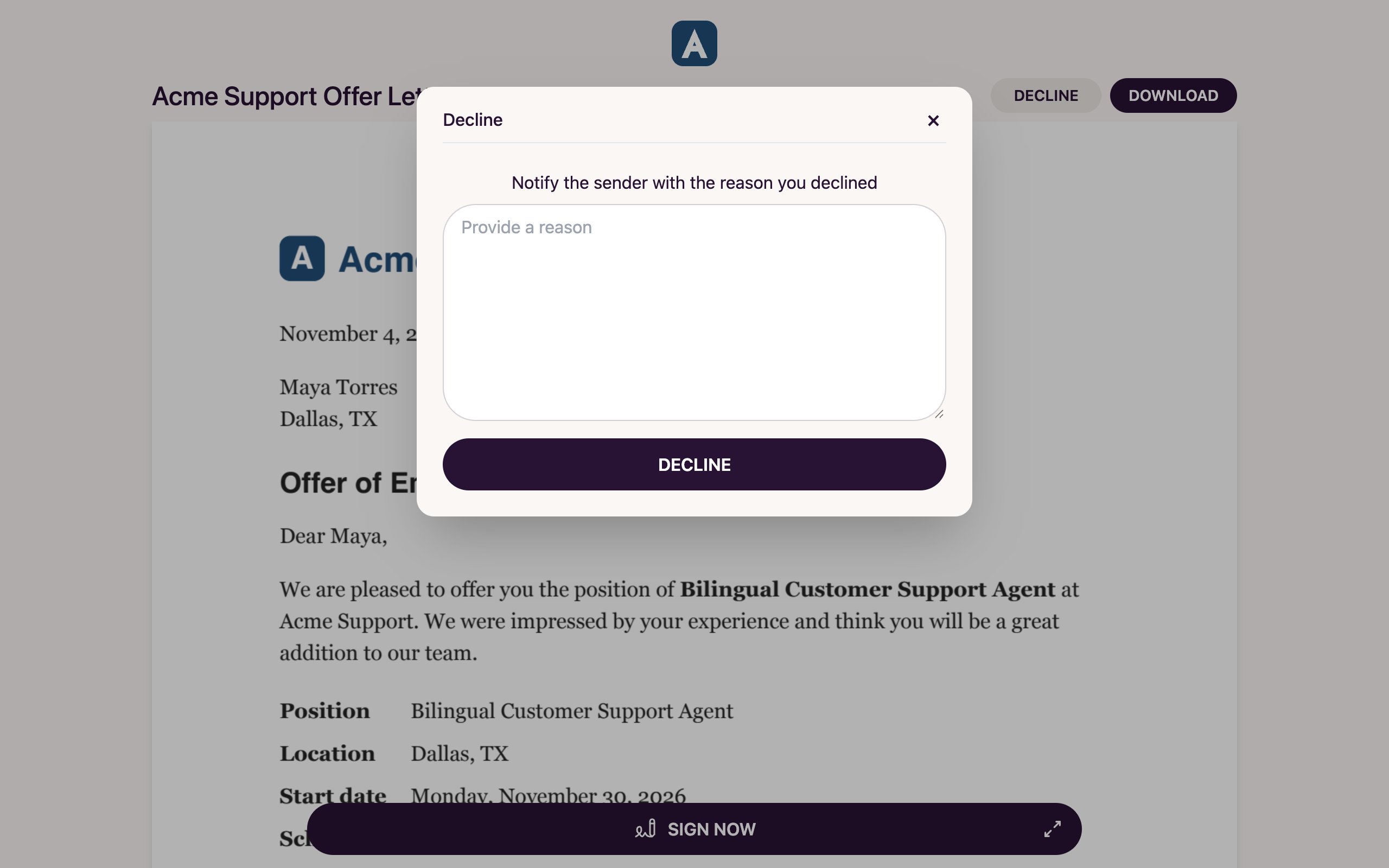
The signing link doesn't work
The signing link doesn't work
The offer may have expired or been replaced. Contact the employer and ask them to send it again.
I have questions about my offer
I have questions about my offer
Pay, start date, schedule and anything else about the job are set by the employer. Contact them before you sign.
Where's my copy?
Where's my copy?
Check your email for the message with the subject ending in Signed, including your spam folder. If everyone has signed and you still don’t have it, contact the employer.
Related
Complete your onboarding forms
New-hire forms and documents.
Who to contact
Questions about the job go to the employer.