

Reset a forgotten password
1
Start signing in
Go to the sign-in page, enter your email and click Next.
2
Click Forgot your password?
It’s under the password box.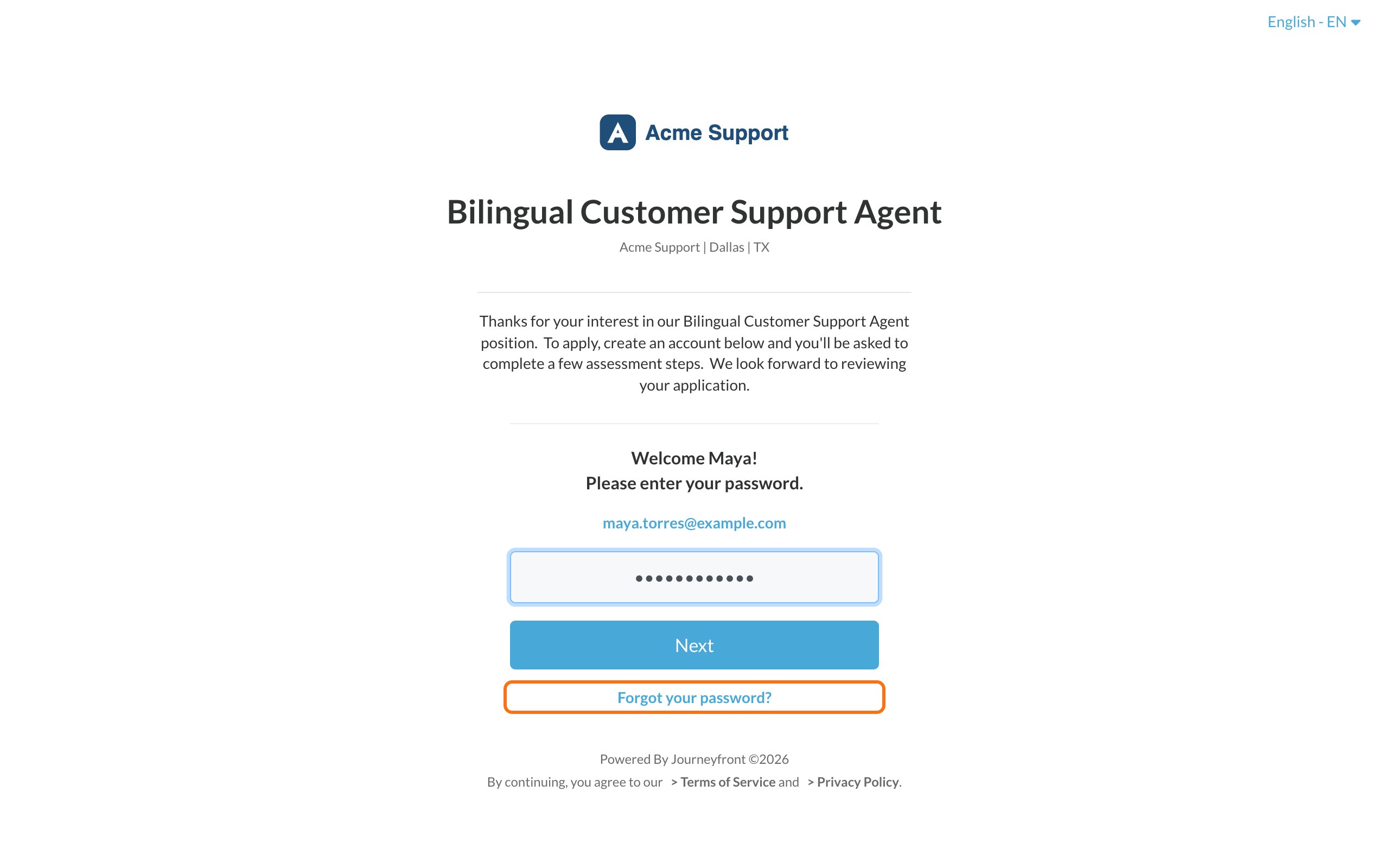
3
Send the reset email
Check that your email is correct, then click Reset password. You’ll see: If the provided account was found, an email will be sent to reset the password.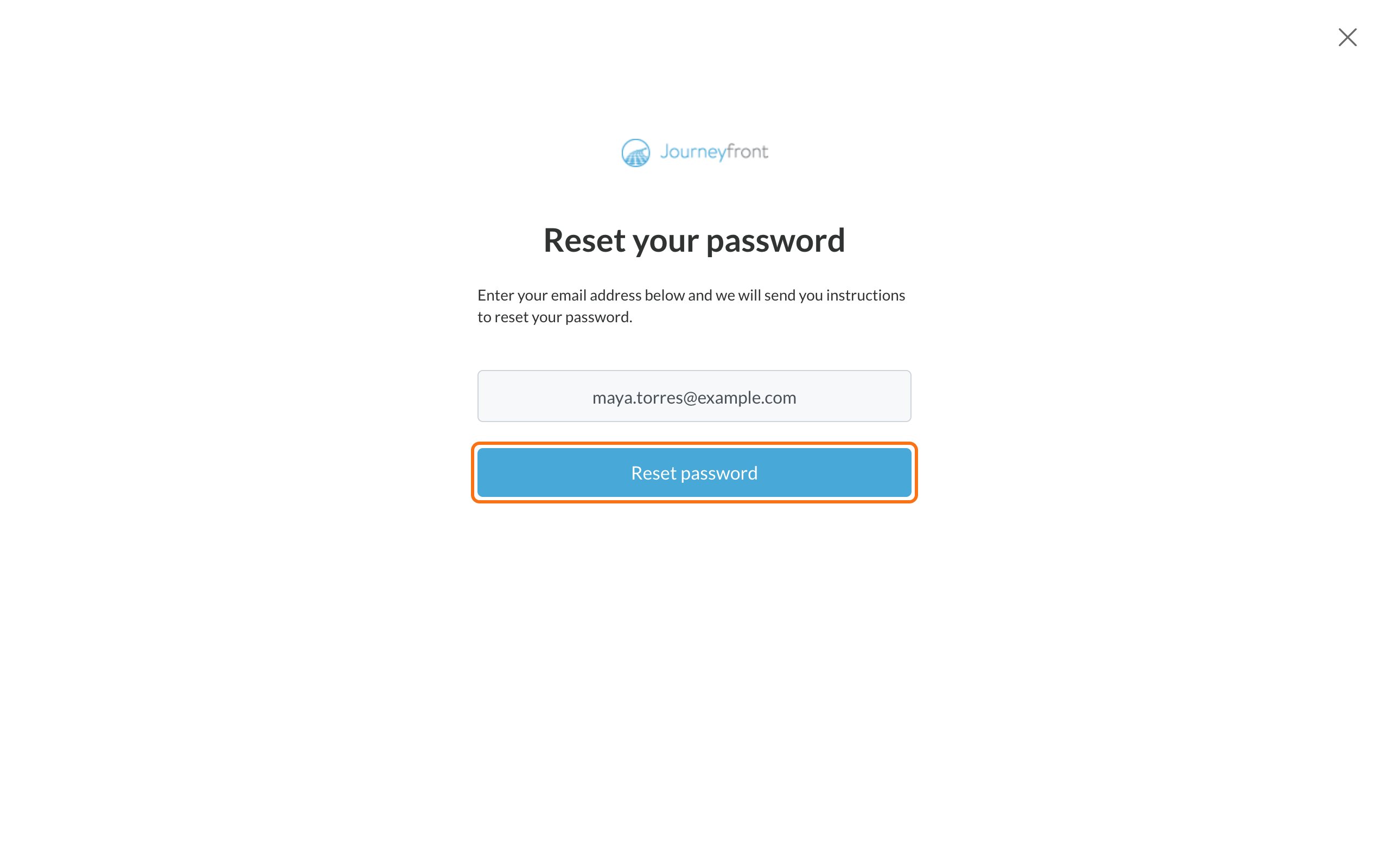
4
Open the email
Look for an email from Journeyfront System with the subject Reset Your Journeyfront Password. Click Click here to reset your password.
5
Choose a new password
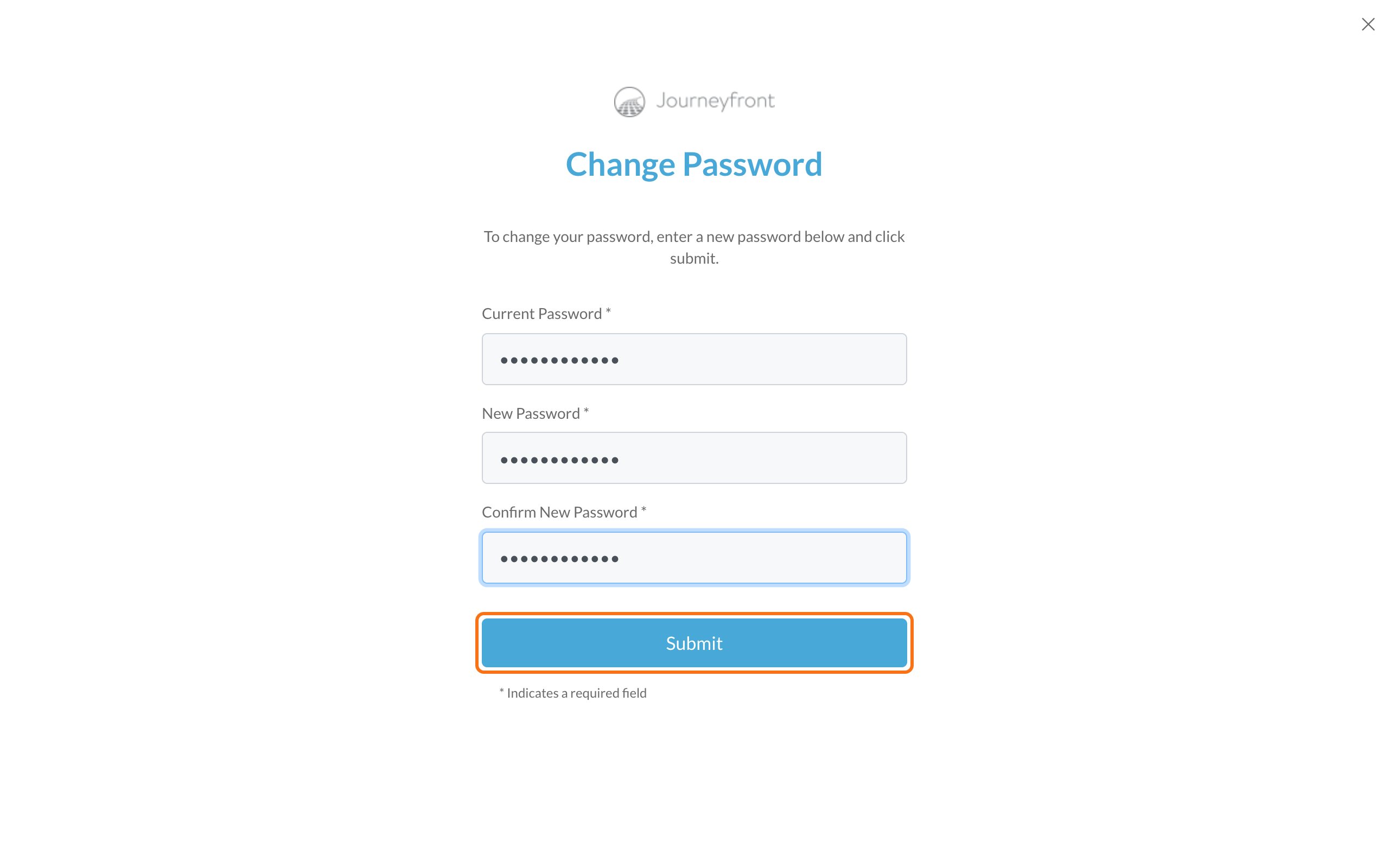
Enter your new password in New Password and again in Confirm New Password, then click Submit.
6
Sign in
You’ll see Your password has been changed successfully. Click the link to sign in with your new password.
! @ # $ % ^ & *
Didn’t get the email?
- Wait a few minutes, then check your spam, junk and promotions folders.
- Check the email address. The reset email only goes to the email on your account. If you applied with a different email, try that one.
- Ask for a new one. Go back to the sign-in page and click Forgot your password? again.
The link says an error occurred
If you see An error occurred while trying reset password. Try again!, the link has usually expired or was already used. Start again from Forgot your password? to get a new link.Change your password when you’re signed in
- Click your name in the top right corner (or the menu icon on a phone).
- Click Change Password.
- Enter your Current Password, then your New Password twice.
- Click Submit.
Related
Can't sign in?
Fixes for other sign-in problems.
Sign in to your account
How signing in works.