

Pick a time
1
Open the invite email
By default, the subject is Interview Invite - Schedule your interview followed by the employer’s name. Click Click here to schedule a time that works best for you.
2
Choose a day and time
The page says Schedule your interview with and the employer’s name. Pick a day, then a time.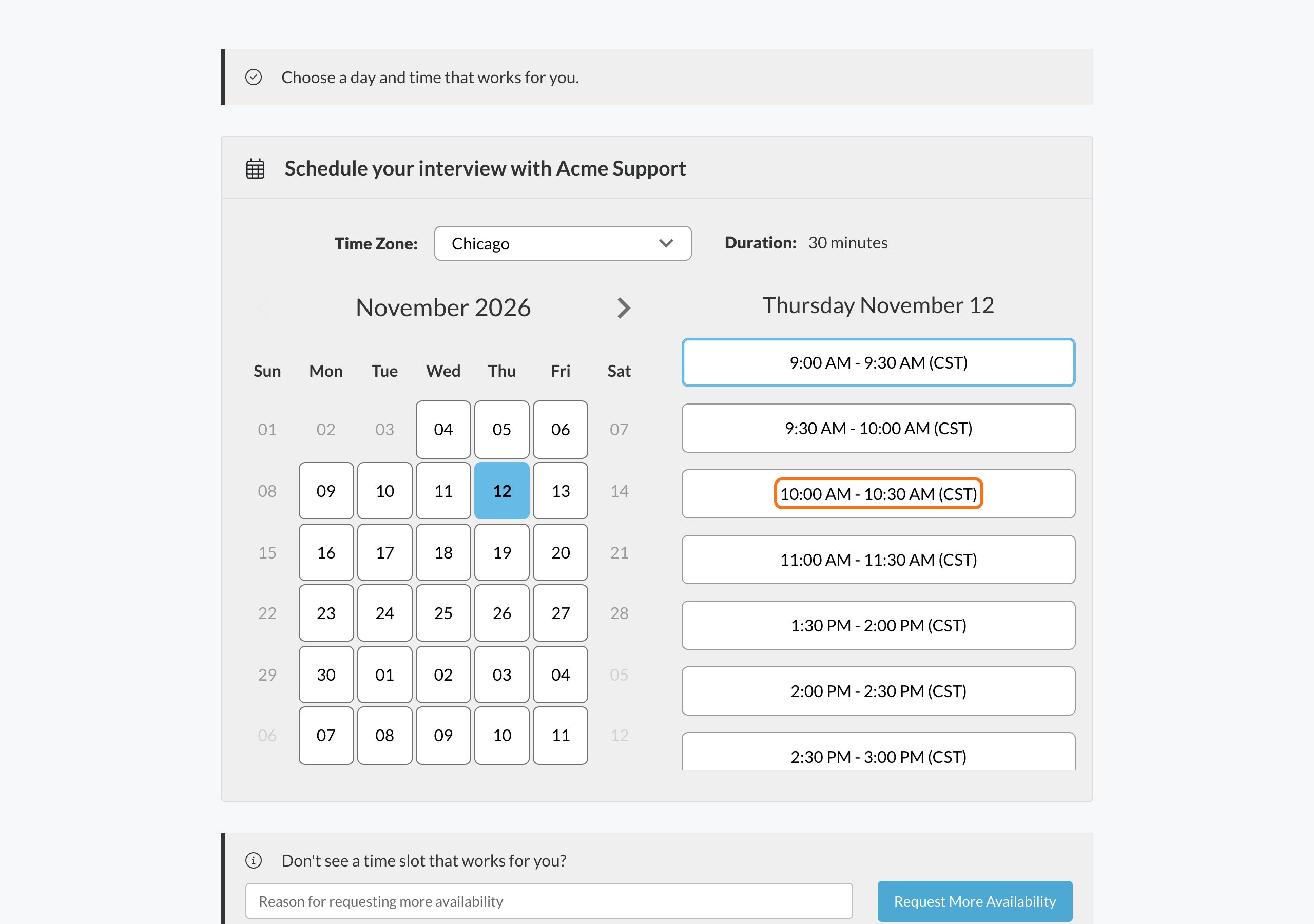
3
Done
When you pick a time, it’s booked. You’ll see Interview Scheduled Successfully. and the date, time and length of your interview.
After you book
- You get a confirmation email. The subject starts with Your interview has been scheduled. It has the date and time, who you’re meeting, and how to join or where to go. See Join your interview.
- You get a calendar invitation from the interviewer’s calendar.
- You get reminder emails before the interview. By default they come 24 hours and 1 hour before.
Common problems
The page says the link is no longer active
The page says the link is no longer active
This scheduling link is no longer active means the link expired or scheduling was turned off for now. You don’t need to do anything. If you already booked, your interview still stands. Check your confirmation email. If scheduling opens again, you’ll get a new invite by email. If you have questions, contact the employer.
The time I picked is no longer available
The time I picked is no longer available
If you see One or more interviewers are not available at the selected time slot, someone booked that time just before you. Pick a different time.
There are no times to choose from
There are no times to choose from
See No times available?.
The page won't load the dates
The page won't load the dates
If you see An error occurred while loading the interview dates., refresh the page. If it keeps happening, try a different browser or open the link on another device.
I can't find the invite email
I can't find the invite email
Check your spam, junk and promotions folders. The invite goes to the email on your application. If you still can’t find it, contact the employer.
Related
Join your interview
Find your join link or address.
Reschedule or cancel
Need a different time?