

Allow access
When a video or audio question opens, your browser asks to use your camera or microphone. Click Allow. If you clicked Block by mistake, or never saw the question, turn access on in your browser:- Chrome or Edge
- Firefox
- Safari on Mac
- iPhone or iPad
- Click the icon to the left of the web address (a lock or settings icon).
- Set Camera and Microphone to Allow.
- Refresh the page.
On a Mac, also check System Settings, then Privacy & Security, then Camera and Microphone, and make sure your browser is turned on.
Record an answer
- Click Start Recording.
- Answer the question. You’ll see Recording in Progress and a timer.
- Click Stop Recording. On video questions, it turns on after a few seconds. To throw away the recording and start again, click Cancel and Start Over.
- You’ll see Recording Complete! Play it back if you want.
- Click Next, or Delete Answer and Start Over to record again.
Common problems
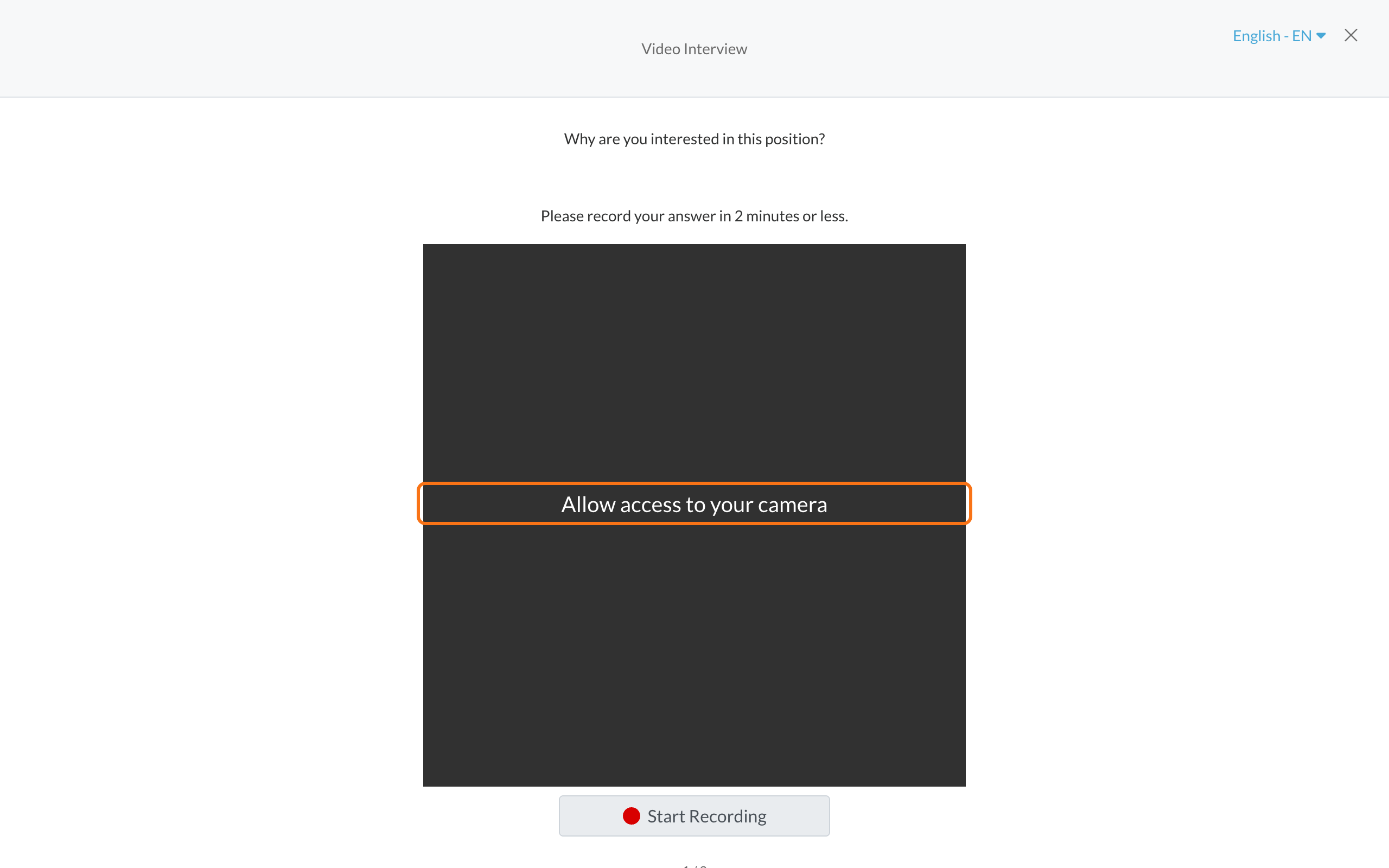
It says Allow access to your camera
It says Allow access to your camera
It says to close all other applications using the camera
It says to close all other applications using the camera
Another app is using your camera, like a video call app. Close it completely, then refresh the page. If that doesn’t work, close your browser, open it again and sign in.
Start Recording is greyed out on an audio question
Start Recording is greyed out on an audio question
Your microphone isn’t available. Allow microphone access, check that a microphone is connected, then refresh the page.
It says video recording is not supported on your current browser
It says video recording is not supported on your current browser
On an iPhone or iPad, video questions need Safari. Open the application in Safari, sign in and continue.
It says Error Uploading Your Video
It says Error Uploading Your Video
Click Try Uploading Again (or Try Recording Again, whichever you see). If it still fails, switch to a different browser and make sure it’s up to date. If you see Download Video, you can save a copy of your recording to your device. Continue Anyway moves on without sending your video, so the employer won’t see it. Use it only if nothing else works.
Can I re-record my answer?
Can I re-record my answer?
Yes, before you move on. Click Delete Answer and Start Over. After you click Next, the answer is saved.
Related
Supported browsers
Which browsers work best.
Before you start an assessment
A quick checklist.