

Fill in your form
1
Open the email
By default, the subject ends with Please Complete Your Onboarding Form. Click Click here to complete your onboarding. You can also open it from your progress page, where it shows as a step in your application.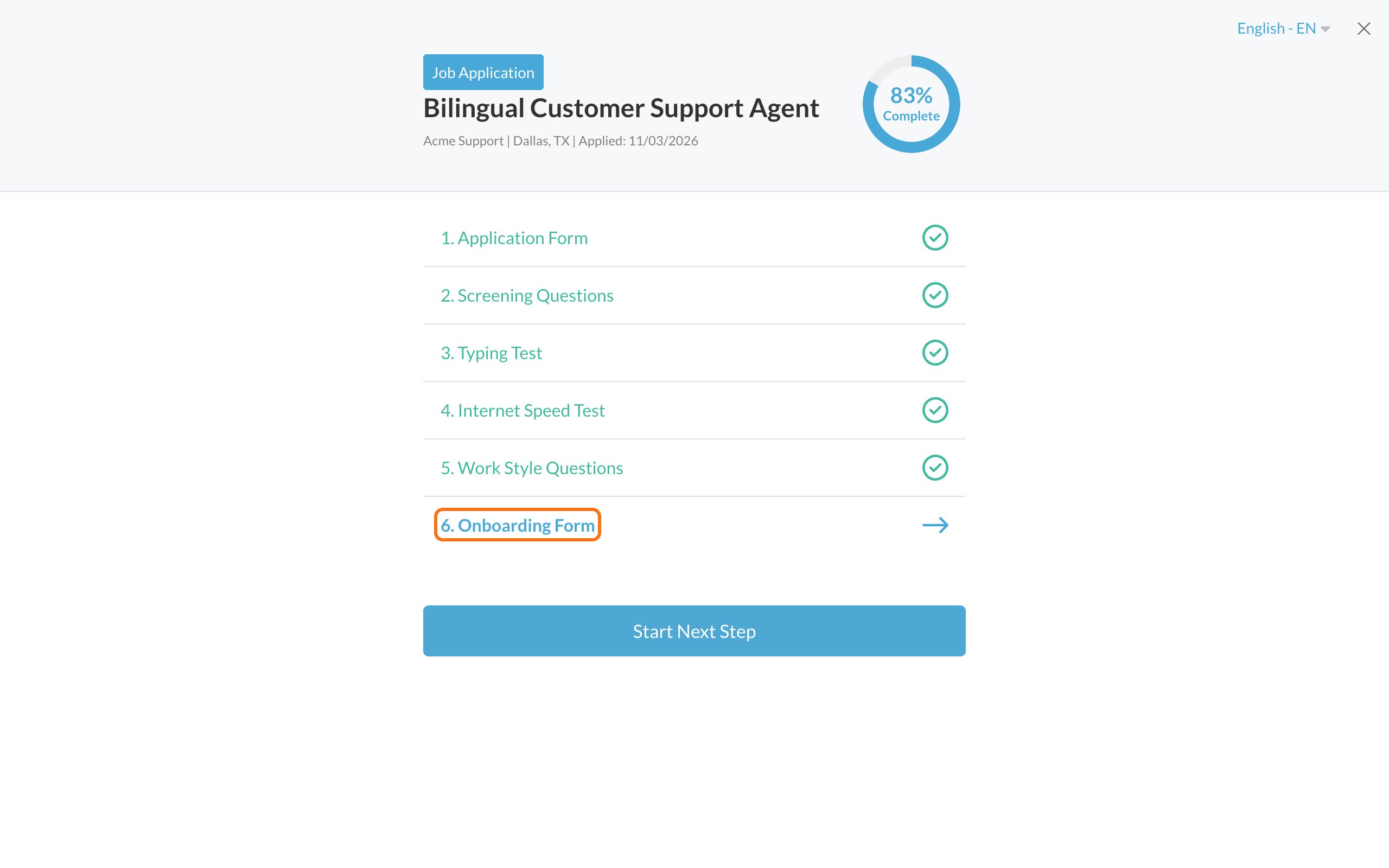
2
Sign in
Sign in with the email and password you used to apply. See Sign in to your account. Don’t have a password? Click Forgot your password? See Reset your password.
3
Fill in every field
Fields marked with a red * are required. Sign any consent forms on the page. See Sign consent forms.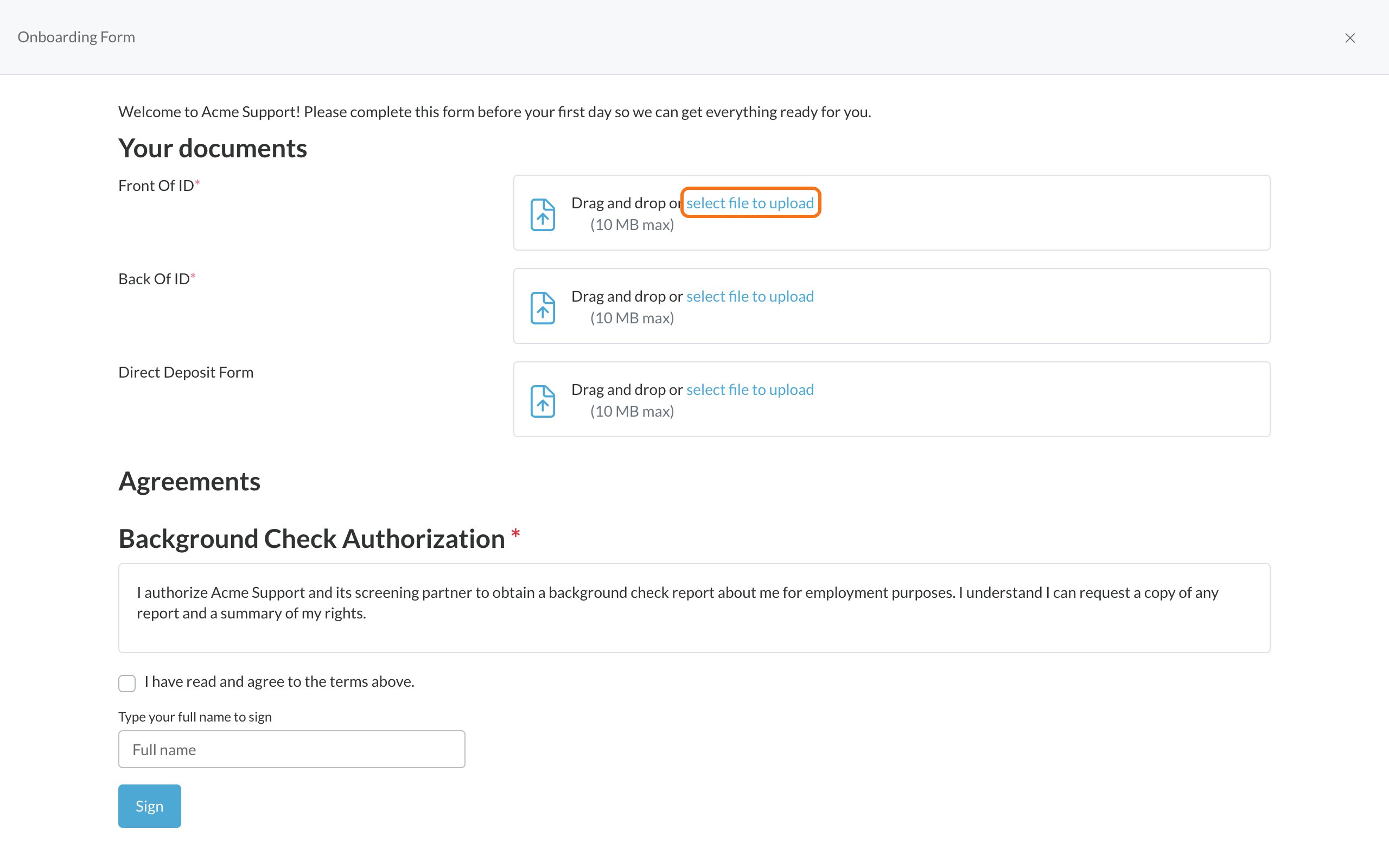
4
Click Next
You’ll see Thank you for completing your onboarding form. Click Continue.
Upload documents
Drag a file onto the upload box, or click select file to upload to pick a file. When it’s done, you’ll see the file name and Uploaded Successfully. To swap it for a different file, click Delete and upload again.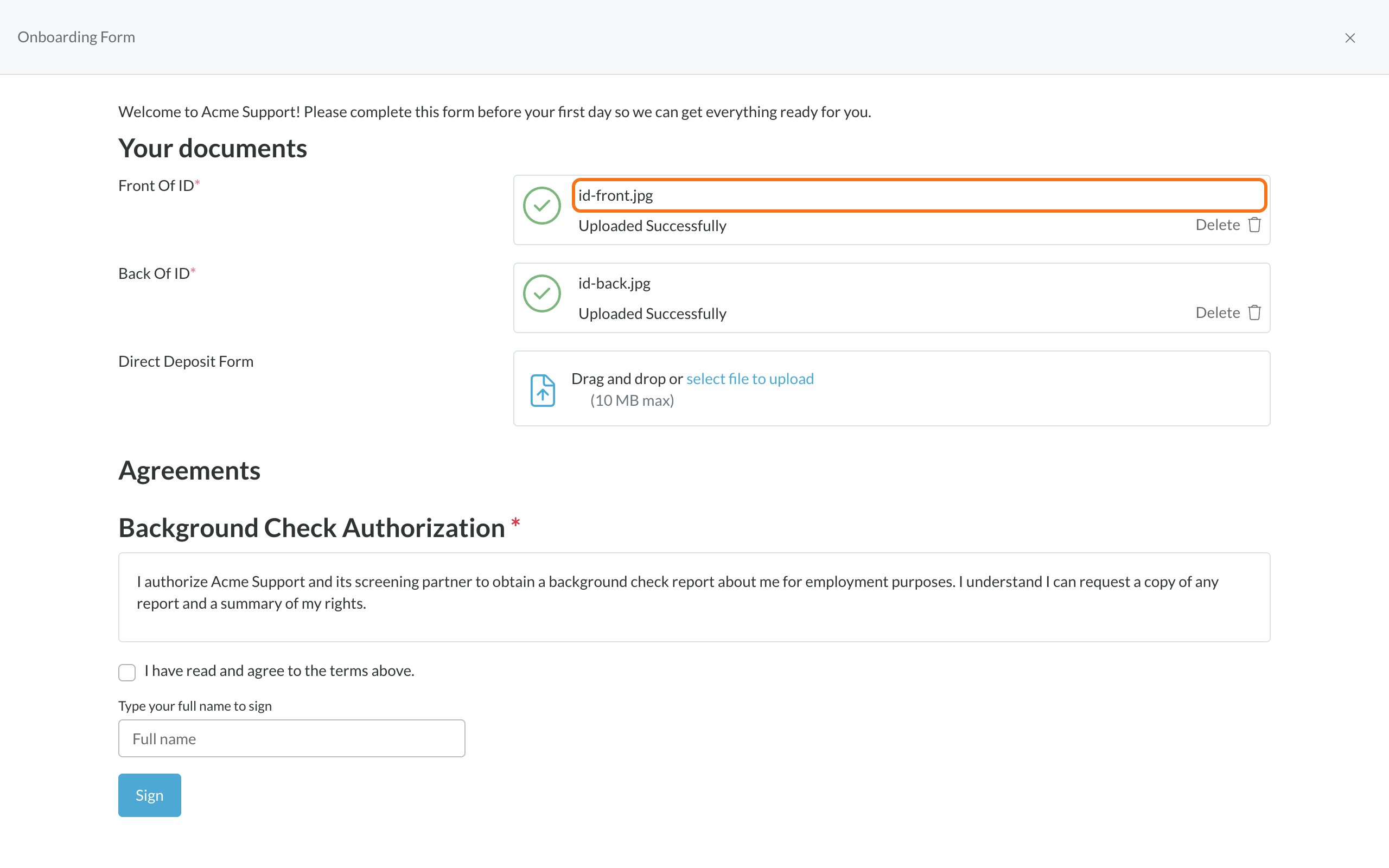
- Size: up to 10 MB per file
- Documents: PDF, DOCX, XLSX, PPTX, TXT, CSV
- Pictures: JPG, JPEG, PNG, GIF, BMP, WEBP, SVG
- Audio and video: files like MP3, MP4 and MOV
Common problems
Related
Sign consent forms
How signing works.
Background checks
If the employer asks for one.